5 G HUB settings that actually changed my gameplay
Most people install Logitech G HUB, change two things, and never open it again. Here are the five settings — per-game DPI, 8000 Hz polling, onboard memory, instant button delay, G-Shift — that actually move the needle.
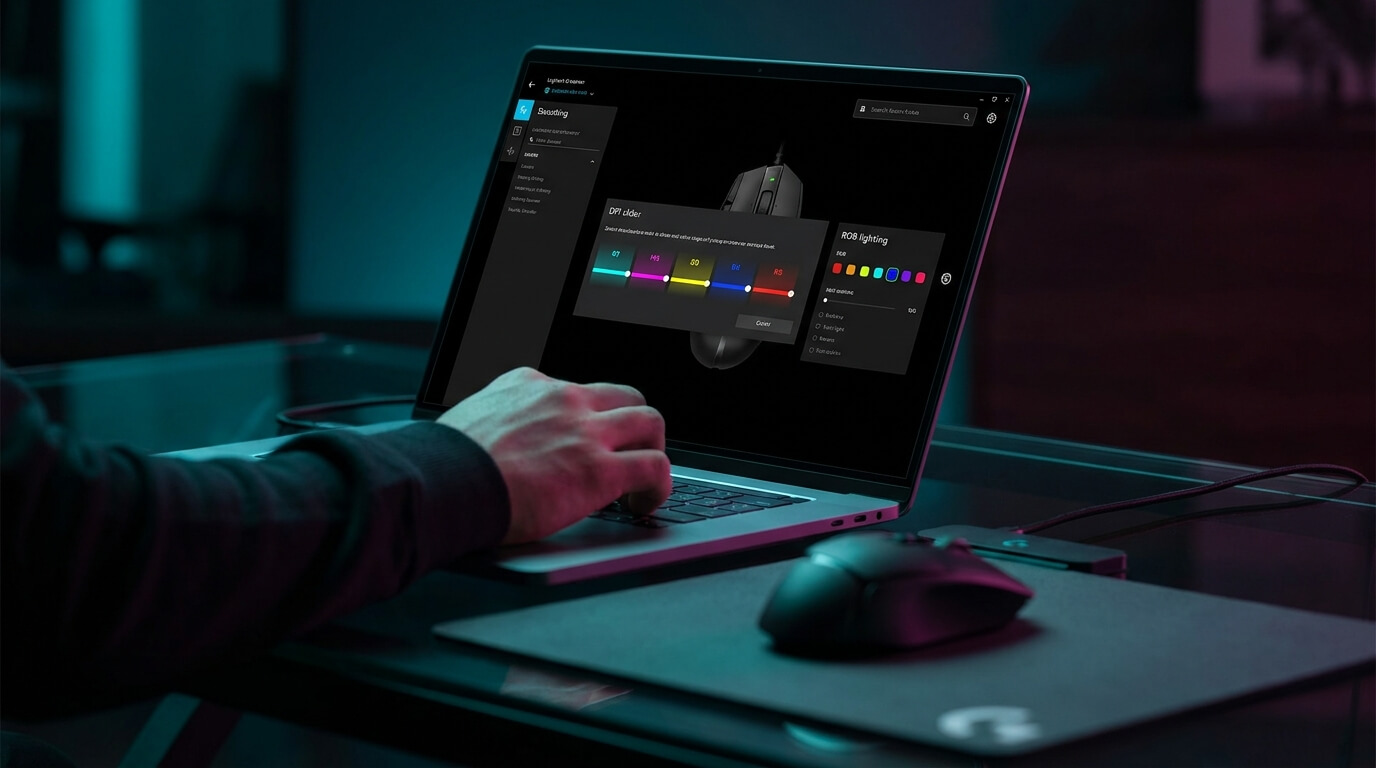

Most people install Logitech G HUB, change two things — DPI and maybe the RGB colour — and never open it again. That’s a waste. G HUB has a handful of settings that genuinely change how you play, and most of them aren’t surfaced anywhere in the default UI. After six months of tournament prep, here are the five I run on every machine I touch.
1. Per-game DPI profiles (not per-mouse, per-game)
The default G HUB setup gives you a global DPI cycle: tap the button, jump between five sensitivity steps. The actually-useful version is per-game DPI profiles. G HUB detects when you launch CS, Valorant, Apex, etc., and automatically swaps your DPI + button bindings to a game-specific profile.
How: G HUB → Profile picker (top-left) → Add Game → Select executable → Assign DPI tier. I run 400 DPI for CS, 800 for Valorant, 1600 for Apex (faster turning radius), 3200 for productivity browsing. The mouse auto-switches the moment you alt-tab into the game.
Works on every Logitech G mouse with onboard memory, including the G Pro Hero, G305 LIGHTSPEED, and G502 X.
2. Report rate — push it as high as your mouse supports
Default polling on most G HUB profiles is 1000 Hz. The HERO sensor mice (G Pro Hero, G305, G502 X) report at 1000 Hz over their respective USB or LIGHTSPEED connections — meaning the mouse tells your PC where it is 1000 times per second, giving you roughly 1 ms of sensor-to-screen latency. The setting matters because some default G HUB profiles ship at 500 Hz to save battery on wireless mice — bump it back up to 1000 Hz the moment you install.
How: G HUB → mouse settings → Sensitivity → Report Rate → 1000 Hz. If you’re on a wireless mouse and worried about battery, this drops total runtime by maybe 10–15% — a worthwhile tradeoff for the response improvement during ranked play.
3. Onboard memory mode
This one’s underrated. By default, G HUB has to be running for your custom profiles, DPI tiers, and button bindings to work. Onboard memory mode stores them on the mouse itself — meaning they work even when G HUB isn’t running, even on a different computer entirely (LAN parties, tournament booths, a friend’s PC).
How: G HUB → mouse → Onboard Memory toggle → Sync Profile. Up to 5 profiles can be stored on the mouse simultaneously. Switch between them with the DPI cycle button (on the Superlight-style G Pro Hero) or a dedicated profile button (on the G502 X).
4. Button delay — set it to “Instant”
Hidden in the assignment panel. G HUB defaults to a small debounce delay (about 8 ms) on programmable buttons to filter accidental double-clicks. For competitive play, that delay is your enemy. Set every button to “No Delay” / “Instant” and the click registers the moment contact happens.
How: G HUB → Assignments → click any button → Delay setting → Instant. Caveat: the LIGHTFORCE hybrid switches in the G502 X don’t develop double-click drift, so you can run this safely. Older switches eventually start mis-firing — replace the mouse before lowering delay to zero on aging gear.
5. G-Shift as a “second function layer”
G-Shift is a modifier button — hold it, and every other button on the mouse switches to a different binding. Think of it like a keyboard’s Shift key, but for mouse buttons. Lets you double the number of macros you can run without adding any physical buttons.
How: G HUB → Assignments → assign any button to G-Shift → then in the G-Shift layer, re-assign every other button to its alternate function. I use it for: forward/back in browsers becomes “ping ally” / “smoke” in Valorant. Same physical buttons, completely different roles depending on context.
Works best on mice with extra side buttons — the G502 X with its 13 programmable inputs is the natural pairing. On the lighter G Pro Hero, you have fewer buttons but still enough to make G-Shift useful for one or two critical bindings.
Bonus: per-key RGB profiles on the keyboard
If you also use a G515 LIGHTSYNC TKL or G813, G HUB can map per-key RGB to your active in-game keybinds. WASD lights green, ability keys light red, ultimate flashes. Looks great on stream, also genuinely helps when you’re learning a new game’s keybinds — your hands learn the colour positions before you’ve memorised the keys.
The 15-minute setup
All five settings take about 15 minutes to configure for one game. Repeat for each game you play regularly (3–4 in most rotations). After that, every time you launch a game, your mouse auto-configures itself: right DPI, right polling, right buttons, right RGB. The first match after you finish the setup feels noticeably tighter — that’s the input-lag reduction plus the muscle-memory benefit of per-game DPI consistency.
Every Logitech G product mentioned is in stock at logitechofficial.pk with the official manufacturer warranty and free nationwide shipping.